Using MiniMeters for the first time
Once MiniMeters is open, you can begin changing settings and customizing MiniMeters for your use case. This section will explain how to Select an Audio Device, Enable and Disable Meters, Rearrange Meters, and Pop Out Meters to separate windows to create custom layouts.
Selecting an Audio Device
The first and most important step is to select the audio device you would like to monitor. Each Operating System has different capabilites. MiniMeters tries to best support the features and limitations of each OS as well as providing alternatives to limitations some Operating Systems impose.
To begin, click the Settings button in the bottom-right corner of MiniMeters.
In the area titled “Audio Device” you can select which device you would like to monitor:
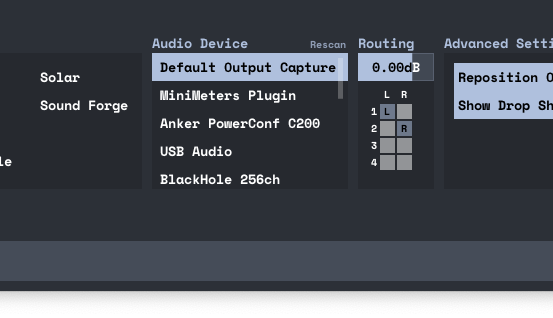
The most commonly selected option is Default Output Capture. Selecting one of these will capture your full system’s audio and display it on MiniMeters.
Note: on macOS 13.0-14.1, Default Output Capture is not available, instead it is called "Desktop Audio" and uses Apple's ScreenCaptureKit API. More info is found on the Audio Routing (macOS) page.
Limitations:
- If you use tools like SoundID or other room correction software it will also monitor the changes made my those tools which may be undesierable.
- Windows Users: If you use ASIO with your DAW, MiniMeters cannot capture your desktop audio while ASIO is in use.
To work around these limitations, MiniMeters includes MiniMetersServer a VST3, Audio Unit, and CLAP Plug-In.
MiniMetersServer:
To use MiniMetersServer, open your DAW / Plug-In Host of choice and insert MiniMetersServer on the Primary channel in your project.
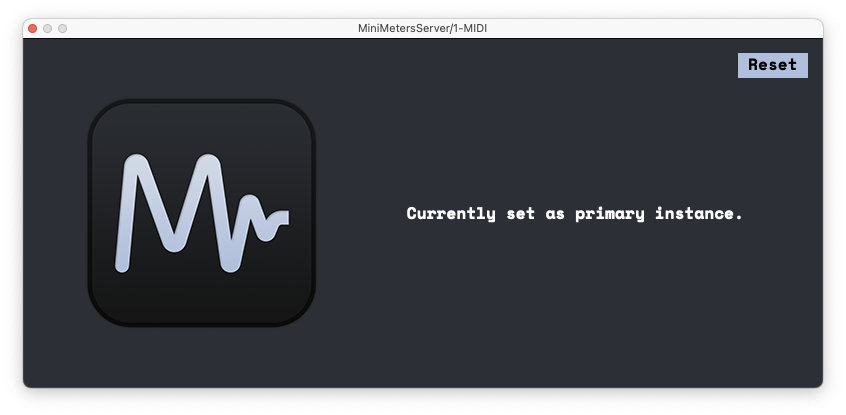
Next, select MiniMeters Plugin from the audio device list inside of MiniMeters.
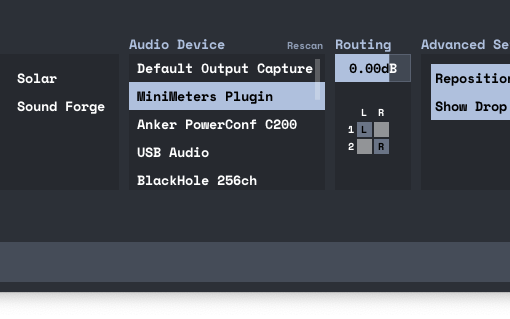
Note: MiniMeters’s individual meters may appear frozen if the MiniMetersServer Plug-Is is not inserted when this is selected. However, MiniMeters itself is not frozen and can still be interacted with.
At this point, MiniMeters will be communicating with the MiniMetersServer Plug-in directly, bypassing whatever limitation you may have run into.
Enable and Disable Meters
To disable meters you do not want to use click the Settings button in the bottom-right corner of MiniMeters.
Next, click the name of the meter you wish to disable. This will hide the meter.
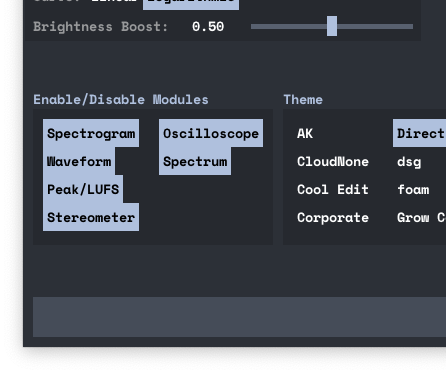
Clicking the name again will enable the meter once again and add it back to the layout.
Rearranging Meters
To begin rearranging meters, click Settings in the bottom-right corner of MiniMeters.
In the bottom right corner of each meter there are three buttons:

These buttons will from left to right:
- Swap the position of this meter with the meter to the left.
- Pop Out the meter (We will discuss this more in the next section of this guide),
- Swap the position of this meter with the meter to the right.
Popping Out Meters
While MiniMeters primarily aims to be a single horizontal bar, MiniMeters also has the ability to move meters to separate windows to create custom layouts.
To begin popping out a meter, click Settings in the bottom-right corner of MIniMeters.
In the bottom right corner of each meter there are three buttons:

Clicking the middle button (the arrow facing up) will remove this meter from the main layout and place it in its own separate window.
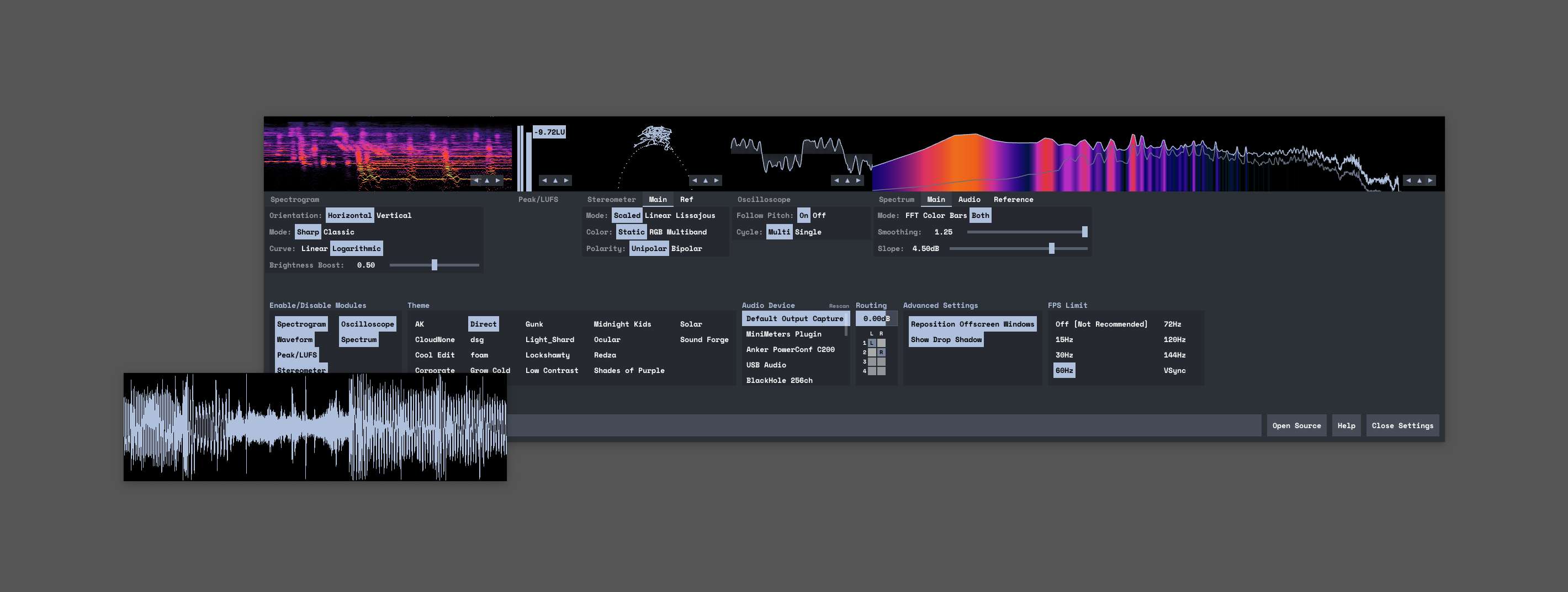
To place the meter back in the main layout, click the “Close” button on the popped-out meter.